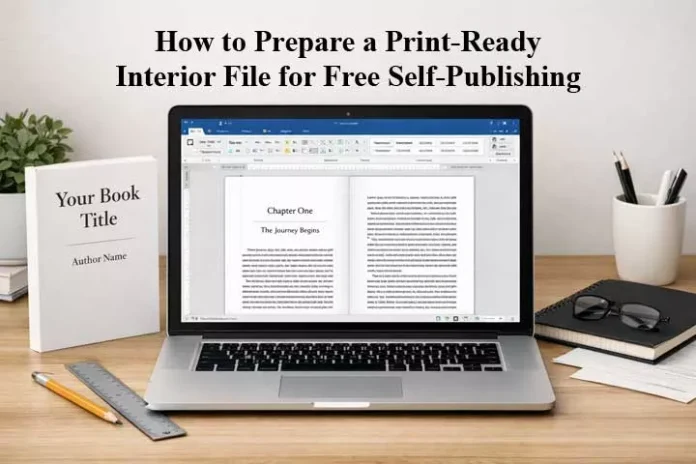
If you are planning to publish your book through free self-publishing platforms or directly with a publisher, preparing a proper print-ready interior file is extremely important. A poorly formatted manuscript can lead to printing errors, rejected submissions, unnecessary delays, or an unprofessional-looking book that fails to meet publishing standards.
Many first-time authors struggle with formatting because they are unsure about page size, margins, fonts, and layout requirements. This is where a clear and reliable guide becomes essential.
This detailed guide will walk you through every step required to create a professional 5.5 × 8.5 inch (Digest Size) book in Microsoft Word, even if you are a complete beginner. Each step is explained in a simple and practical manner, making it easy to follow without any prior design experience.
By following this guide, you will be able to prepare a clean, well-structured, and print-ready interior file that meets the expectations of most free self-publishing platforms and publishers, helping you move confidently toward successful book publication.
This guide is ideal for:
– First-time authors
– Self-publishing writers
– Anyone preparing a free self-publishing print-ready file
What Is a 5.5 × 8.5 Book Size?
The 5.5 × 8.5 inch book size—commonly referred to as Digest Size—is one of the most popular and widely accepted formats in the publishing industry. It strikes a perfect balance between portability and readability, making it comfortable for readers to hold and read.
This size is especially popular for:
– Novels and short story collections
– Poetry books
– Academic and educational books
– Non-fiction and self-help titles
Because of its standard dimensions, the 5.5 × 8.5 size is well-supported by most printers and free self-publishing platforms, making it an excellent choice for first-time and experienced authors alike.
Step 1: Open Microsoft Word and Create a New Document
Before setting up the page size and formatting, the first step is to create a fresh document in Microsoft Word. Starting with a blank document ensures that no previous formatting issues affect your book layout.
1- Open Microsoft Word on your computer
2- Click on Blank Document
3- A new document will open
Step 2: Set Page Size to 5.5 × 8.5 Inches
Setting the correct page size is one of the most important steps in book formatting. If the page size is incorrect, your final printed book may face layout or trimming issues. Always set the page size before adding or formatting any content.
1- Click on the Layout tab
2- Select Size
3- Click More Paper Sizes
4- Enter: Width: 5.5 inches and Height: 8.5 inches
5- Make sure Apply to: Whole document is selected
6- Click OK
Your document is now set to the correct book size.
Step 3: Set Proper Margins for Book Printing and Binding
Margins play a crucial role in book printing and binding. Proper margin settings ensure that your text remains clearly visible and is not cut off during trimming or binding. This step is especially important for paperback and perfect-bound books. Correct margins ensure that text is not lost during binding.
Recommended Margin Settings:
– Top: 0.75 inch
– Bottom: 0.75 inch
– Inside: 0.9 inch
– Outside: 0.6 inch
Steps:
1- Go to Layout → Margins → Custom Margins
2- Enter the values above
3- Under Multiple pages, select Mirror margins
4- Click OK
Mirror margins are essential for maintaining proper alignment on left and right pages in printed books..
Step 4: Leave Page 1 and Page 2 Blank (Very Important)
When preparing a print-ready interior file for free self-publishing, it is important to leave the initial pages blank. Most publishers follow a standard layout process and reserve these pages for essential book information.
For most publishers and free self-publishing services:
Page 1 is reserved for the Intro / Half Title / Copyright
Page 2 is reserved for the ISBN page
What You Should Do:
Keep Page 1 completely blank
Keep Page 2 completely blank
Start your main content from Page 3
The publisher will automatically insert the intro and ISBN details. Authors should not add any content to these pages to avoid layout or publishing issues.
Step 5: Choose the Right Font and Font Size
Selecting the right font and font size is essential for readability and a professional book appearance. A clean, easy-to-read typeface ensures that readers can comfortably enjoy your content, whether in print or paperback format.
Recommended Fonts for Books:
– Times New Roman
– Garamond
– Georgia
Best Settings:
– Font size: 11 pt or 12 pt
– Line spacing: 1.15 or 1.2
– Alignment: Justified
These settings provide a balanced layout and are widely accepted by publishers and self-publishing platforms.
Step 6: Paragraph Spacing and Indentation
Proper paragraph spacing and indentation improve readability and give your book a clean, professional layout. Consistent spacing helps the text flow smoothly and makes the pages visually appealing.
Open Paragraph Settings and Set:
– Before: 0 pt
– After: 6 pt
– First-line indent: 0.3 inch (recommended)
These settings create a well-structured and professional appearance suitable for print-ready book files.
Step 7: Insert Page Numbers
Page numbers are an essential part of a professionally formatted book. They help maintain proper sequence and improve the overall reading experience. At this stage, you only need to add basic page numbering.
1- Click Insert → Page Number
2- Choose Bottom of Page
3- Select a simple page number style
Page numbering for front matter can be adjusted later by the publisher if required.
Step 8: Start Each Chapter on a New Page
For a clean and professional book layout, every chapter should begin on a new page. This is a standard publishing practice and helps maintain proper structure and readability.
How to do it:
– Place the cursor before the chapter title
– Press Ctrl + Enter
This inserts a proper Page Break, ensuring each chapter starts on a fresh page.
Step 9: Headers (Optional)
Headers are optional but can be useful for giving your book a polished and organized look. They help readers identify the book title or author name while flipping through pages.
You may add:
– Book title
– Author name
Steps:
– Insert → Header
– Choose a simple style
Keep headers minimal to maintain a professional appearance and avoid cluttering the page.
Step 10: Final Review and Save as Print-Ready PDF
Before submitting your file for publishing, it is important to perform a final review. This ensures that your book meets printing standards and avoids common formatting errors.
1- Check spelling and overall formatting
2- Confirm margins and page breaks throughout the document
3- Go to File → Save As
4- Choose PDF as the file format
5- Select High Quality / Print
Your interior file is now print-ready and suitable for free self-publishing and professional printing.
Final Words
This guide is designed to be a complete and reliable resource for anyone preparing a print-ready interior file for free self-publishing. By following these steps carefully, you can create a professional-quality 5.5 × 8.5 size book in MS Word without using expensive design software.
Remember:
– Correct page size and margins are crucial
– Always leave Page 1 and Page 2 blank
– Use clean fonts and proper spacing
– Export a high-quality PDF for printing
Follow on WhatsApp : Subscribe to our official WhatsApp channel to receive alerts whenever new posts are published on AuthorsWiki. Please note, we only share content on WhatsApp channel that is highly relevant and beneficial to authors, ensuring you stay updated with valuable insights, tips, and resources. Follow on WhatsApp
Copyright Notice © Re-publishing of this exclusive post, including but not limited to articles, author interviews, book reviews, and exclusive news published on AuthorsWiki.com, in whole or in part, on any social media platform, newspaper, literary magazine, news website, or blog, is strictly prohibited without prior written permission from AuthorsWiki. This content has been created and curated exclusively for AuthorsWiki by our editorial team, or the writer or verified contributors of the article and is protected under applicable copyright laws. To learn more about how this content is protected, please read our full Copyright Policy.